 ImageSplit
Plan an AI image that survives a nine-tile split
How to brief a continuous image for a 3×3 layout, keep important details away from seams, and review every tile before publishing.
ImageSplit Editorial · October 7, 2026
A scene can look complete and still make an awkward grid. The center may hold every useful detail while the corners become empty sky. A face may sit exactly where two cuts meet. Fixing that after export can mean rebuilding the source.
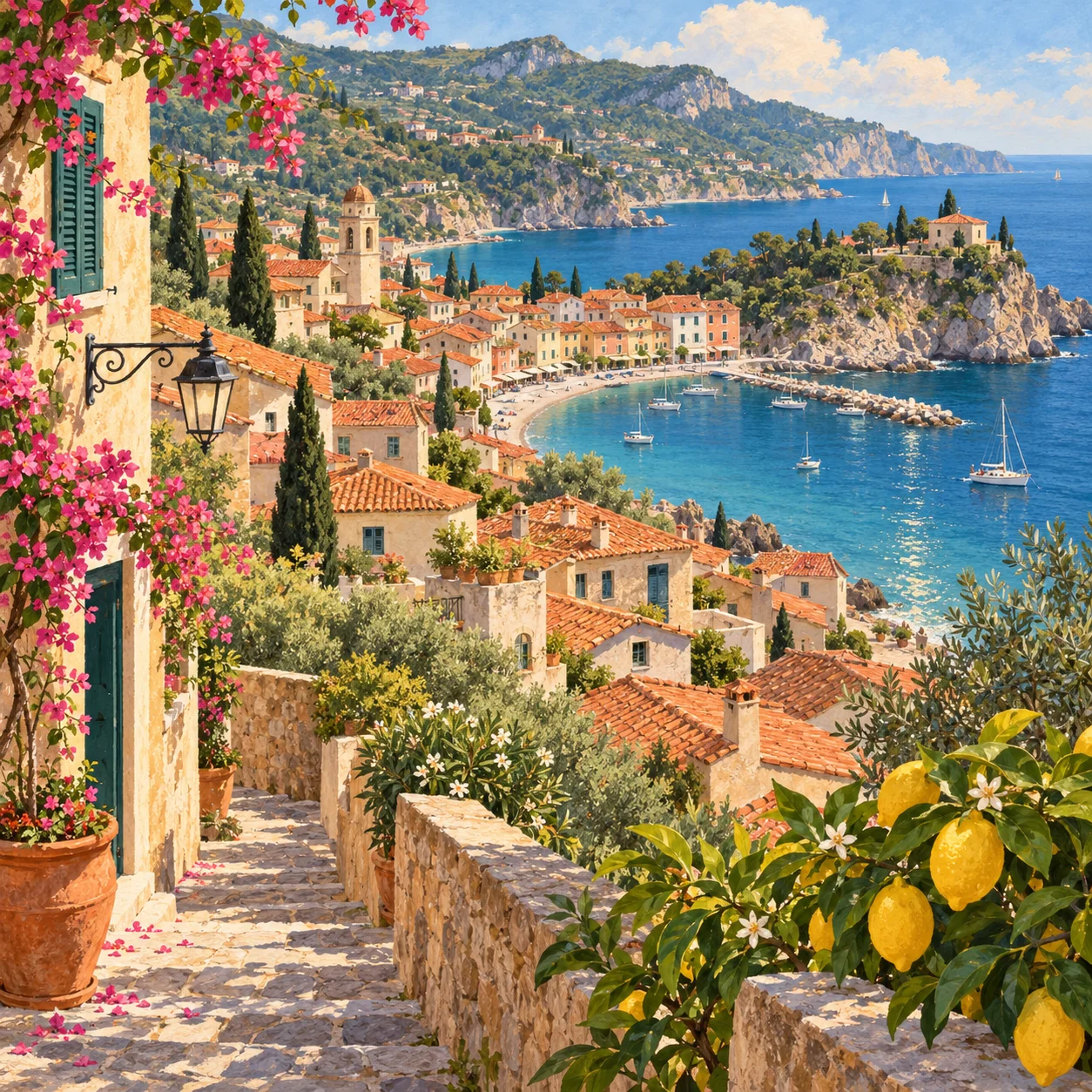
Plan the split before generating. The coastal illustration in this guide was made with Codex to demonstrate a continuous composition. It is not an output benchmark for Nano Banana 2.1. The principle applies to any image source you have permission to use.
Decide what the nine tiles are for
A profile puzzle, nine separate assets, and a swipe carousel are different deliverables. A 3×3 puzzle relies on neighboring posts appearing together. A carousel appears inside one post and needs a different reading sequence. Choose the destination before writing the image brief.
For a continuous nine-tile picture, ask for a scene with several areas of interest: a foreground path, buildings in the middle distance, and coastline further back. Repeated colors and shapes help connect the pieces. One small subject against a blank background often creates several weak tiles.
Preview the seams on a detailed garden scene
This riverside market has detail in all four corners, but its red parasol crosses the vertical cut lines. The same source image is shown in nine equal regions below. The gap makes the broken canopy easier to notice; this example still needs a composition revision.
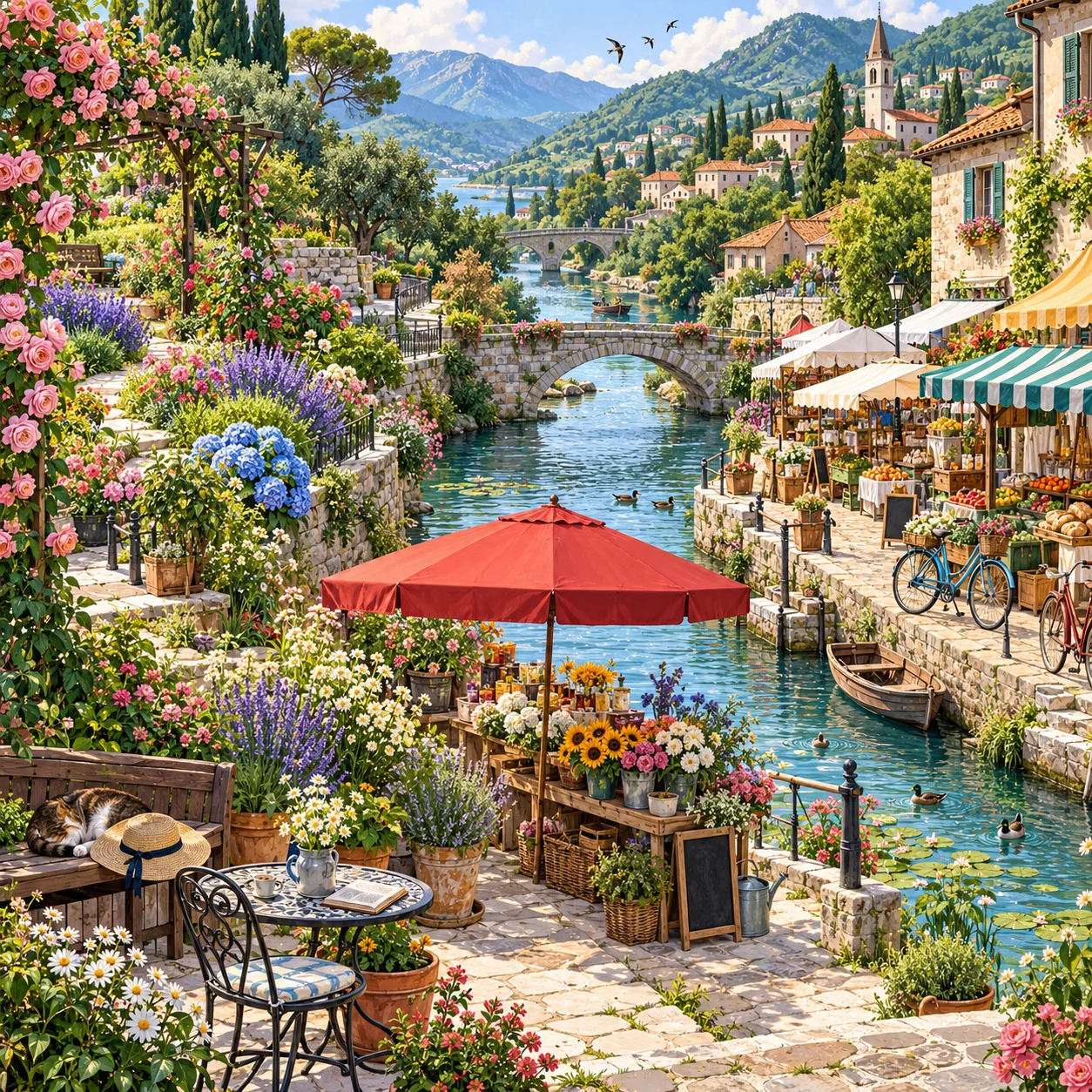
Codex-generated tutorial example; not a Nano Banana 2.1 model result or a product screenshot.
Prompt to adapt
Square riverside garden market, continuous scenery with flowers, bridges, stalls, and paths. Distribute useful detail across all nine regions. Keep the main subject within the center region; avoid important details on the one-third and two-thirds cut lines. No words or baked-in grid.What to inspect
Trace the river and bridge across neighboring tiles, then inspect each corner by itself. The red parasol shows why a prompt is only a request: preview the actual split and move or resize the subject if the seam interrupts it.
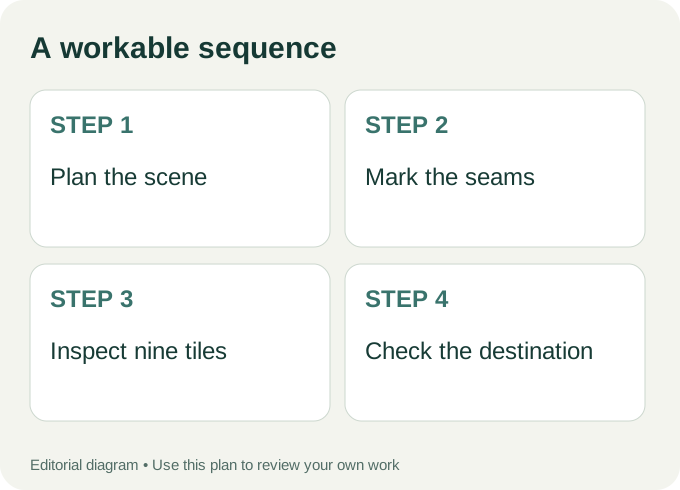
Workflow diagram: a proposed sequence, not a recorded product run.
Keep fragile details away from the cuts
Imagine vertical and horizontal cut lines at one third and two thirds of the frame. Avoid placing eyes, small lettering, or a product logo directly on those lines. Buildings, water, and textured backgrounds usually tolerate a cut better than a face or a short word.
Create a square continuous coastal illustration for a 3 by 3 split.
Include a foreground walking path, terracotta rooftops, and a blue bay.
Distribute useful detail across the frame. No text or visible grid.
Keep key landmarks clear of the one-third and two-third cut lines.
This request is a composition guide, not a guarantee that every crop will work. Inspect the generated source before choosing it. If the important building sits on a seam, change the framing or choose another source instead of hoping the export hides the problem.
Check resolution in terms of the individual tiles
Dividing a 3000-pixel-wide image into three columns gives each tile roughly 1000 pixels in width before any crop or resize. That is simple arithmetic, not a platform recommendation. Your destination may need a different crop or minimum size.
Do not resize a tiny source upward merely to make the dimensions look sufficient. Inspect fine details after the split. Sharp lines in the whole image can become distracting jagged edges inside a smaller panel.
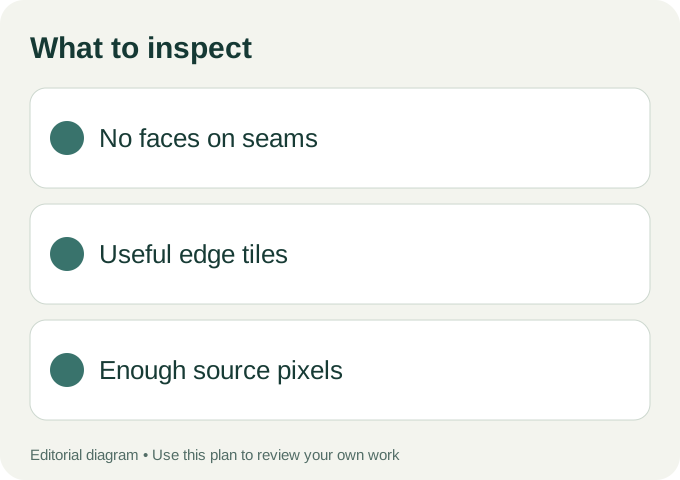
Use these checks on your own export.
Preview the real export
Use Split Image in 9 for equal tiles, or Instagram Grid Maker for its profile-oriented framing and order guidance. ImageSplit processes your file locally in the browser. If you use an external AI workspace to create the source, that service has its own data handling; the browser-only promise here applies to the ImageSplit tools.
To prepare a new source, inspect Nano Banana 21’s image workspace and its available models. The recent Google image-model documentation is useful background, but source composition remains your responsibility.
Open all nine files, not just the center tile. View the small versions together and individually. Keep the complete image with the exports so you can adjust the crop later. For the next step, read the source-to-nine-files tutorial and the profile posting-order guide.