 ImageSplit
From one AI poster to nine image tiles
A practical export workflow: save the original, choose equal tiles or profile framing, inspect seams, and keep the posting sequence clear.
ImageSplit Editorial · October 7, 2026
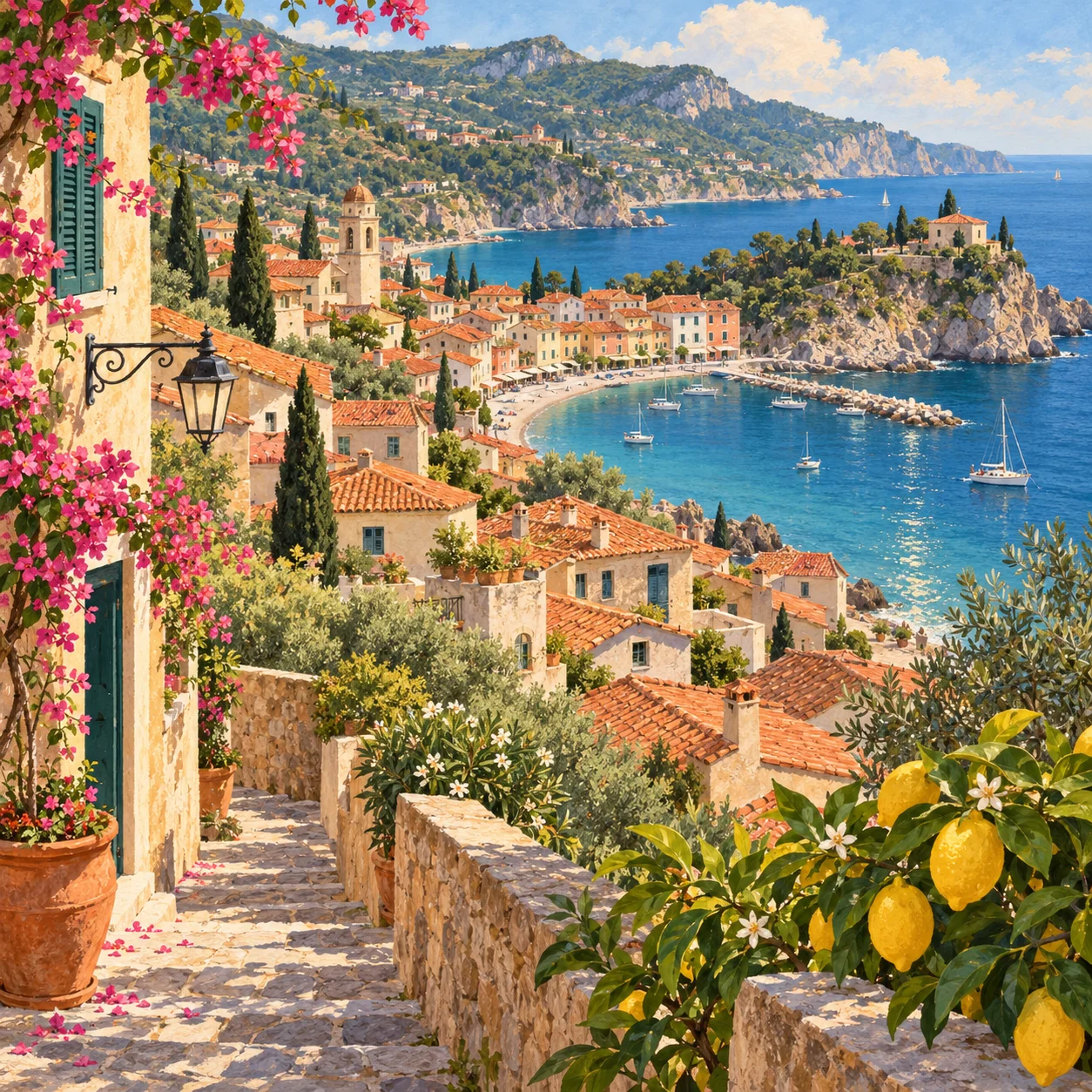
Once the source artwork is approved, the job changes. You are no longer deciding how the scene should look; you are preparing files that can be used reliably. Keep the original, choose the correct splitting tool, and inspect the exported pieces.
This guide uses a Codex-generated coastal illustration as a visual example. The steps also work with your own poster or licensed photograph. No example here claims to be a measured Nano Banana 2.1 result.
Save an original file, not a preview screenshot
Download the full output from the image tool. A screenshot can include interface chrome, reduce dimensions, or change the crop. Keep the untouched original in a separate folder. If you later decide on a different split, you should not have to reconstruct the image from nine compressed pieces.
If you are preparing new artwork, explore the available models in Nano Banana 21. Check the selected model and retain the prompt with the export. Google’s release notes explain its October image-model update; they do not verify an independent workspace’s current routing.
Pick equal tiles or a profile workflow
Split Image in 9 creates a regular set of equal panels. Use it when the nine files are assets for a layout, a presentation, or another destination where you control the arrangement.
Instagram Grid Maker adds profile-oriented framing and posting guidance. Use it when the goal is a profile puzzle, and read the instruction shown by the tool. Do not assume a generic ZIP’s reading order is the right upload order for a profile.
Review the nine tiles before exporting
This riverside market has detail in all four corners, but its red parasol crosses the vertical cut lines. The same source image is shown in nine equal regions below. The gap makes the broken canopy easier to notice; this example still needs a composition revision.
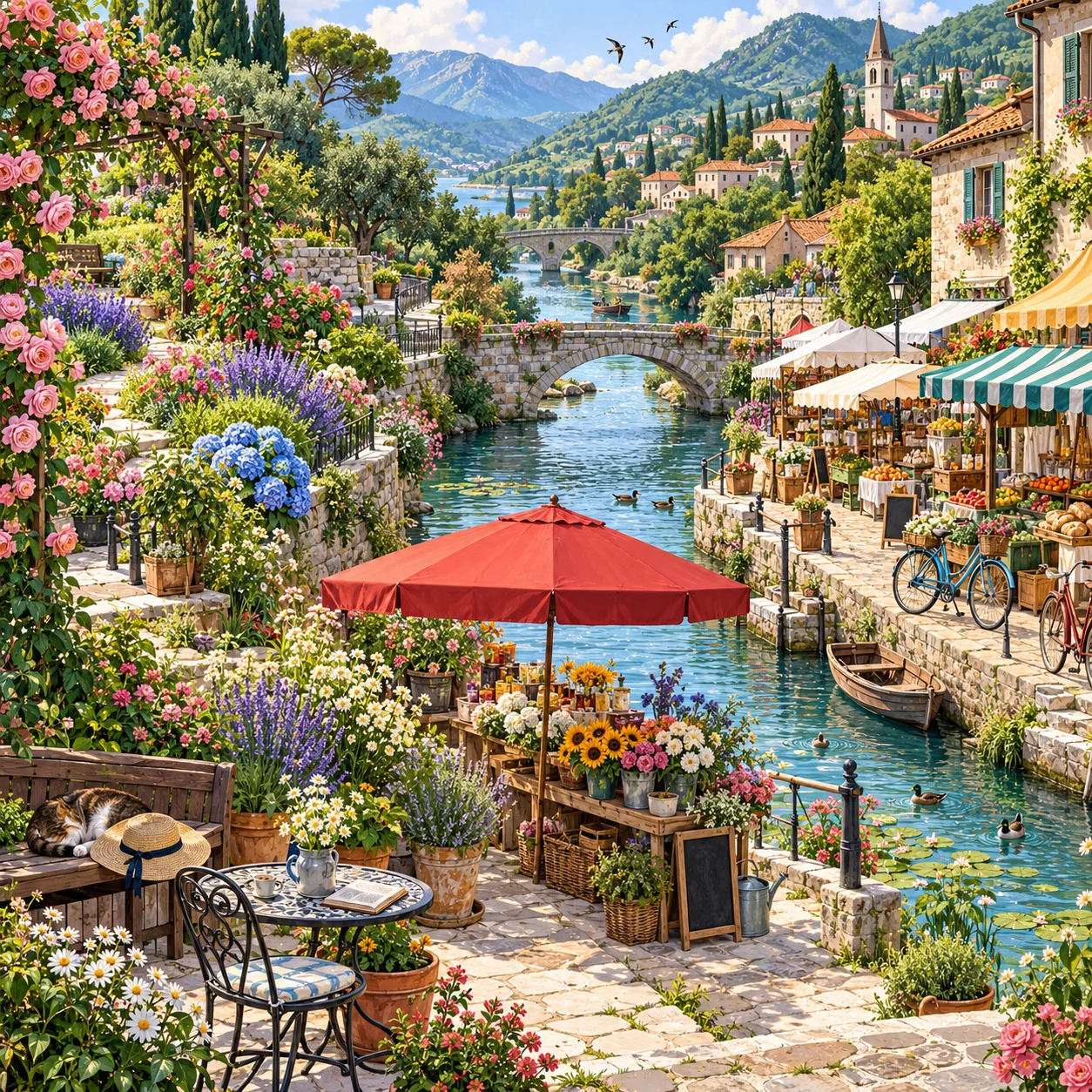
Codex-generated tutorial example; not a Nano Banana 2.1 model result or a product screenshot.
Prompt to adapt
Square riverside garden market, continuous scenery with flowers, bridges, stalls, and paths. Distribute useful detail across all nine regions. Keep the main subject within the center region; avoid important details on the one-third and two-thirds cut lines. No words or baked-in grid.What to inspect
Trace the river and bridge across neighboring tiles, then inspect each corner by itself. The red parasol shows why a prompt is only a request: preview the actual split and move or resize the subject if the seam interrupts it.
Before export, reduce the gaps mentally and check the whole scene again. Then inspect the destination layout and posting order. This page preview demonstrates equal square regions; it does not show a live social profile or a completed download.
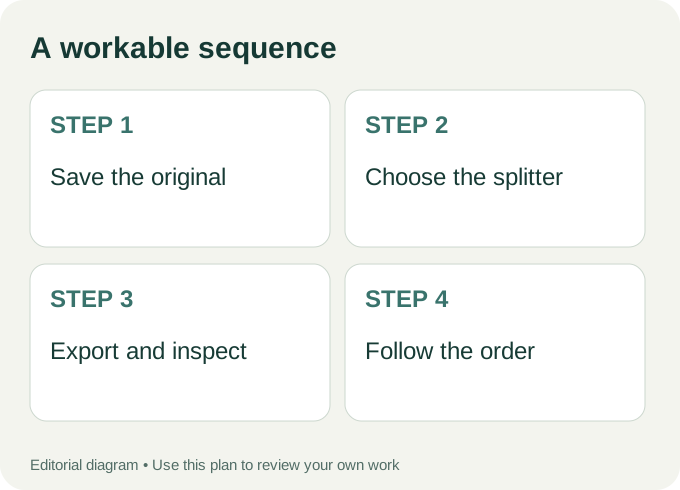
Workflow diagram: a proposed sequence, not a recorded product run.
Review the crop before exporting
Place the image in the chosen tool and inspect the outer edges. A crop can remove a path, roof, headline, or subject that helped the original composition make sense. Look at the center as well: aligning the full picture does not ensure that every individual panel reads well.
For a text-heavy poster, check whether a title crosses a seam. Splitting a headline between posts can make each tile harder to understand. If the text matters more than the puzzle effect, consider a single post or a carousel layout instead.
Open every file in the download
Check the first and last tiles, then the remaining seven. Inspect sharp edges, repeated colors, and any words near a cut. Compare the files with the complete source. Keep the filenames and order supplied by the tool while reviewing, so you do not accidentally mix exports from two different crops.
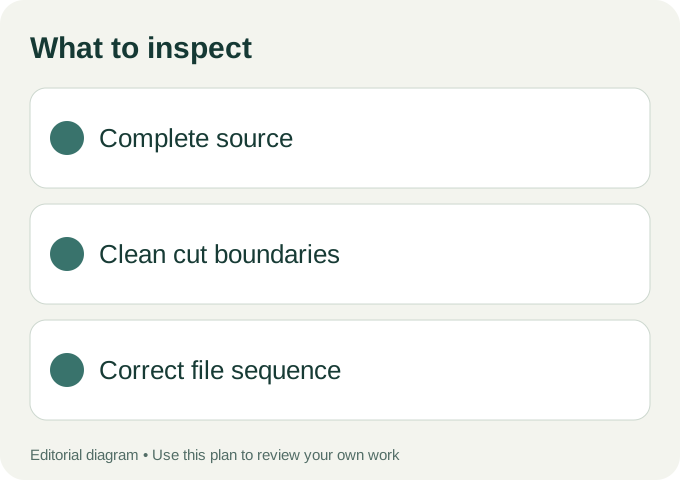
Use these checks on your own export.
For a profile puzzle, follow the current tool’s posting guidance and preview the destination on a phone. New posts, pinned content, and visible crop behavior can affect how the arrangement appears. Verify the actual profile instead of relying only on a desktop contact sheet.
Keep the privacy boundary clear
ImageSplit’s tools process the selected file in your browser. That does not extend to the separate service used to generate an image. Use files you are comfortable supplying to that service, and read its own terms when relevant.
Keep a simple delivery folder: original artwork, the approved crop, numbered exports, and a short note describing the destination. For composition problems, go back to the nine-tile planning guide. For upload sequence, use the split-image posting guide. Re-export from the original if anything changes; do not repeatedly crop and compress a previously exported tile.